Scrap Mechanic: Restore a Survival Backup After 1.0.6
Use the official Backup folder method and keep the original world files.
Quick Answer
If the early September 10 release of 1.0.6 damaged your Survival world, recover an earlier save from its Backup folder. Axolot’s diagram shows copying that backup into the parent Survival folder. The revised 1.0.6 went live on September 18; its release notes still point affected players to the backup recovery instructions.
On This Page
Before restoring the backup
Close Scrap Mechanic. As a precaution, copy your whole Survival save folder to a separate safe location before changing any files. Keep the damaged world and the backups so you can retry without losing the originals.
The current stable 1.0.6 includes a fix for some saves crashing on load. That is separate from restoring progress damaged by the early patch; the release announcement does not promise every affected world will repair itself automatically.
Find the Windows Survival folder
Open this location in File Explorer, replacing the placeholders with your Windows user name and Steam ID:
C:\Users\<USERNAME>\AppData\Roaming\Axolot Games\Scrap Mechanic\User\User_<STEAMID>\Save\Survival
You can also paste %APPDATA%\Axolot Games\Scrap Mechanic\User into File Explorer’s address bar, then open your User_<STEAMID> folder and Save\Survival. This is the same location reached through Windows’ Roaming AppData shortcut.
Copy a backup into the save folder
- Open the Backup folder inside Survival.
- Select a backup from before the affected session. Check its name and date; a backup made after damage may preserve that damage.
- Copy the backup file, return one level to Survival, and paste it there. The official recovery diagram shows Ctrl+C and Ctrl+V, leaving the backup’s timestamped name.
- Start the updated game, load the recovered world and check the progress and creations you expected to recover.
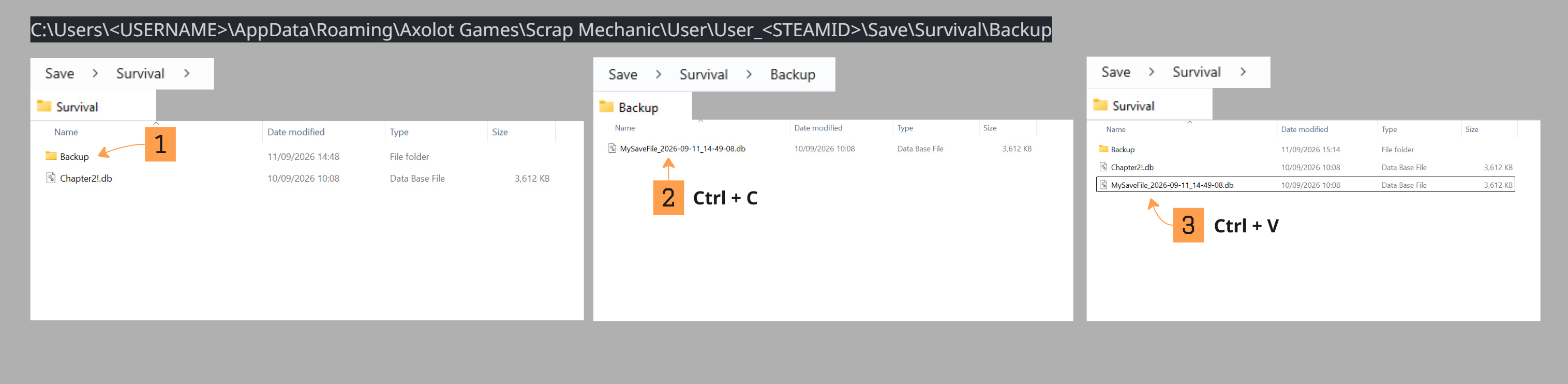
The completed check is an earlier world that opens and contains the expected progress. Progress made after that backup is not part of the recovered save. Keep the original files until you have checked the result.
If there is no usable backup
If the Backup folder is empty, the available backups already contain the damage, or the restored world still fails to load, stop replacing files at random. This method needs an earlier usable save.
Axolot asks bug reports to include a description, the log from that session and the save file. Send them to [email protected]. The documented default log location is:
C:\Program Files (x86)\Steam\steamapps\common\Scrap Mechanic\Logs
For a Steam installation on another drive, use the Logs folder inside that installation’s Scrap Mechanic directory. Mention the game version, when the problem first appeared and which backup you tried.
Sources and patch status
Checked September 26, 2026: official recovery note, September 11 (updated September 17) and its copy-and-paste diagram; stable Patch 1.0.6, September 18 (updated September 21). Closing the game and preserving a separate copy are GameHelpBase precautions. The recovery procedure comes from Axolot; we have not tested your save.